
System Options - Mail
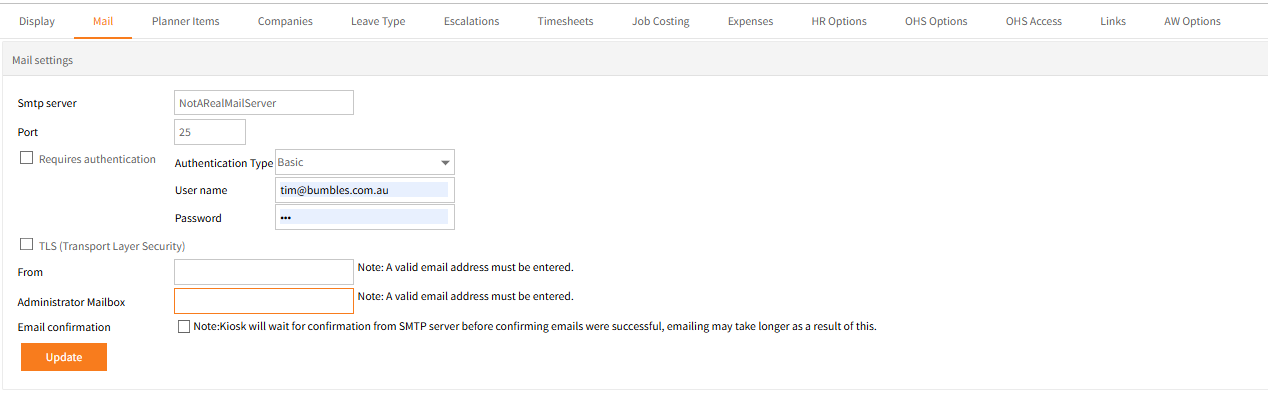
Emailing underpins a lot of the important functions in Employee Self-Service Kiosk including leave request notifications.
If your email server settings and account are unknown contact your IT staff for assistance.
If email is set up and working in Ready Pay for users, the same settings should work in Employee Self-Service Kiosk.
| Field | Explanation |
| Smtp server | Enter the server details. |
| Port | Enter the Port Number (usually 25). |
| Requires authentication | If the SMTP Server requires authentication, tick the box and select the Authentication Type. Enter the User name and Password for this authentication. |
| TLS (Transport Layer Security) |
The use of this depends on the receiving server settings. For example Gmail or Hotmail will require this to be enabled, but for Exchange Server it is optional. Check with your IT resources for more information. |
| From | Enter Tthe From email address. For some email services this must match the account. |
| Administrator Mailbox |
The Administrator Mailbox email address is mandatory. This is the address to which Support queries in Employee Self-Service Kiosk’s Support > Help, Undeliverable messages and Error Messages will be sent. |
| Email Confirmation | This should usually only be ticked if problems are being experienced with emailing from Employee Self-Service Kiosk for troubleshooting purposes. |
Once all changes have been made, click Update to save.
Note: If changes are made and the email server requires Authentication, enter the password again before clicking Update to save.
Employee Self-Service Kiosk Links

| Field | Explanation |
| Employee Self-Service Kiosk link URL | This is only required if users access Employee Self-Service Kiosk via different URL’s e.g. localhost/Employee Self-Service Kiosk inside the office network but a fully qualified domain name outside. Enter the URL accessible from anywhere for emails to always include that URL |
| ICS |
Tick this option to include an .ics file on approved leave request emails. This enables the file to be imported into any external calendar e.g. Outlook, iCalendar, Google Calendar. |
Once all changes have been made, click Update to save.
Return to Admin Menu